# How to Set Up a Teams Meeting

### How to Set Up Teams Meeting with Audio Conference Dial-in

*The audio conferencing dial-in option requires the appropriate Microsoft license for audio conferencing features. If you do not have the audio license, you can still set up Teams meetings but the phone dial-in option will not be available. If you are unsure of your license status, or need to request it, please submit an IT ticket at* [*https://sgsc411.sgsc.edu*](https://sgsc411.sgsc.edu)

#### From Outlook

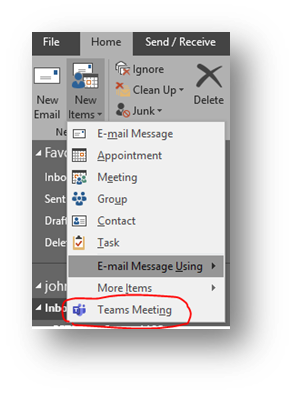
<span style="mso-bidi-font-family: Calibri; mso-bidi-theme-font: minor-latin;"><span style="mso-list: Ignore;">1.<span style="font: 7.0pt 'Times New Roman';"> </span></span></span>Open Outlook and click on the New Items button then select Teams Meeting
<span style="mso-no-proof: yes;">![](https://wiki.sgsc.edu/uploads/images/gallery/2023-11/embedded-image-hbjtc36r.png)  
</span>

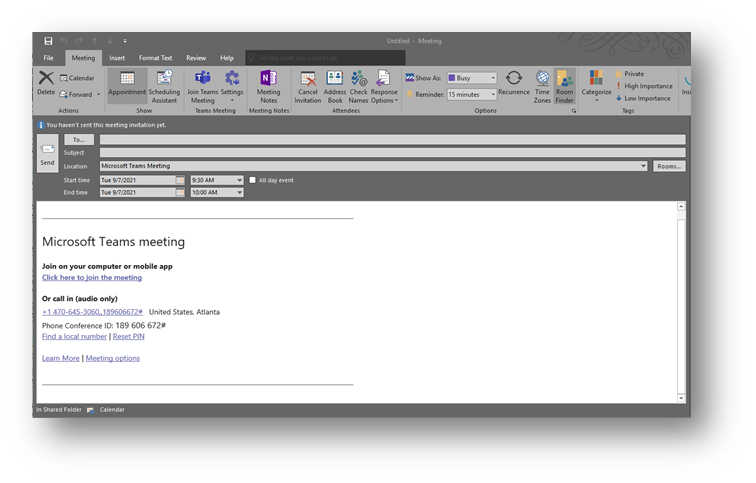
<span style="mso-bidi-font-family: Calibri; mso-bidi-theme-font: minor-latin;"><span style="mso-list: Ignore;">2.<span style="font: 7.0pt 'Times New Roman';"> </span></span></span>In the “To:” box, enter required attendees.

<span style="mso-bidi-font-family: Calibri; mso-bidi-theme-font: minor-latin;"><span style="mso-list: Ignore;">3.<span style="font: 7.0pt 'Times New Roman';"> </span></span></span>You can copy &amp; paste the dial-in information from here if you need to provide it via other means.
<span style="mso-no-proof: yes;">![](https://wiki.sgsc.edu/uploads/images/gallery/2023-11/embedded-image-kitlu15o.png)  
</span>

<span style="mso-bidi-font-family: Calibri; mso-bidi-theme-font: minor-latin;"><span style="mso-list: Ignore;">4.<span style="font: 7.0pt 'Times New Roman';"> </span></span></span>Click Send. You can also forward this invite or copy &amp; paste the dial-in info into a separate email to invite more people, including outside guests.

#### From the Teams app (Desktop or Web)

<span style="mso-bidi-font-family: Calibri; mso-bidi-theme-font: minor-latin;"><span style="mso-list: Ignore;">1.<span style="font: 7.0pt 'Times New Roman';"> </span></span></span>Open the Teams app and select the Calendar tab in the left column

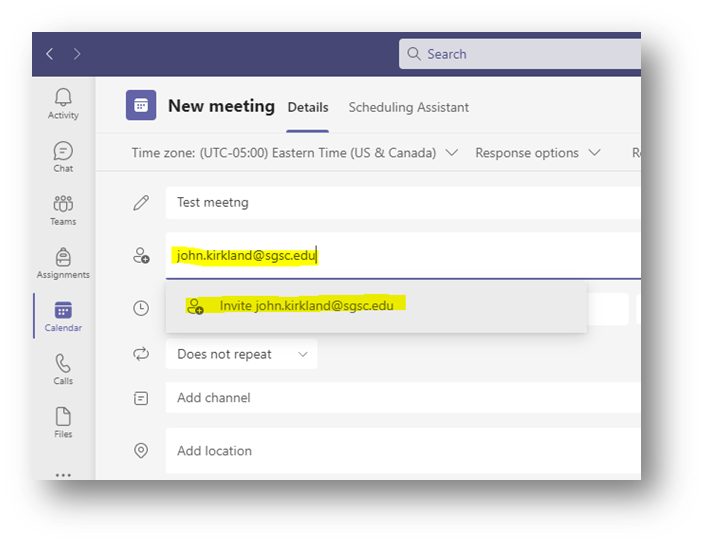
<span style="mso-bidi-font-family: Calibri; mso-bidi-theme-font: minor-latin;"><span style="mso-list: Ignore;">2.<span style="font: 7.0pt 'Times New Roman';"> </span></span></span>Click “New Meeting” at the top right, then enter a title and adjust the date and times.

<span style="mso-bidi-font-family: Calibri; mso-bidi-theme-font: minor-latin;"><span style="mso-list: Ignore;">3.<span style="font: 7.0pt 'Times New Roman';"> </span></span></span>Enter your own email address under “Required attendees” (this is necessary to generate the audio conferencing dial-in information)
<span style="mso-no-proof: yes;">![](https://wiki.sgsc.edu/uploads/images/gallery/2023-11/embedded-image-mb7cl1ct.png)  
</span>

<span style="mso-bidi-font-family: Calibri; mso-bidi-theme-font: minor-latin;"><span style="mso-list: Ignore;">4.<span style="font: 7.0pt 'Times New Roman';"> </span></span></span>Add any additional attendees and click Save at the top right.

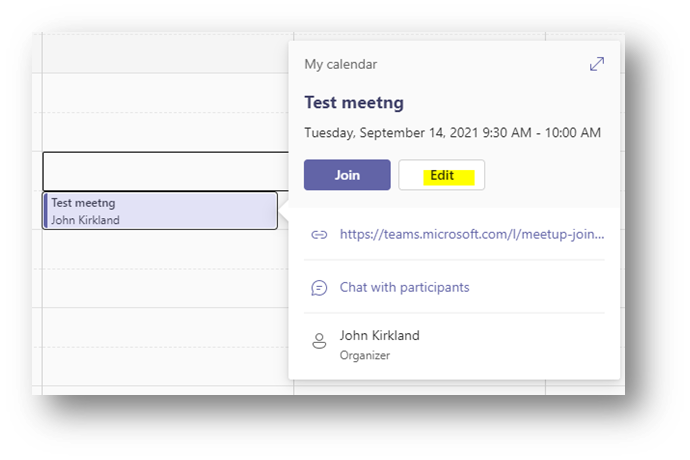
<span style="mso-bidi-font-family: Calibri; mso-bidi-theme-font: minor-latin;"><span style="mso-list: Ignore;">5.<span style="font: 7.0pt 'Times New Roman';"> </span></span></span>Back at the Teams Calendar, locate the meeting that you just created, click on it, then choose Edit
<span style="mso-no-proof: yes;">![](https://wiki.sgsc.edu/uploads/images/gallery/2023-11/embedded-image-jlxapsnt.png)  
</span>

<span style="mso-bidi-font-family: Calibri; mso-bidi-theme-font: minor-latin;"><span style="mso-list: Ignore;">6.<span style="font: 7.0pt 'Times New Roman';"> </span></span></span>The audio conferencing dial-in information will be displayed, you can copy &amp; paste this into a separate email if you want to invite additional attendees or outside guests.