SGSC Student Account
- First Time Account Setup
- Adding or Updating Multifactor Authentication Methods
- Unblock your account or change your password
- How to Generate a Bypass Code in the Authenticator App
First Time Account Setup
To sign into your SGSC account for the first time, please follow the instructions below. You can sign into email, GeorgiaVIEW or Banner to set up your account. You can find the login links here. You will first need your SGSC student email address and student ID number. You can look those up here.
What is my password?
When your SGSC account is created, you are issued a temporary password. The password is made up of the letters sgsc, your uppercase first and last initials, then the last four digits of your Student ID number. If you don't know your ID number you can look it up here.
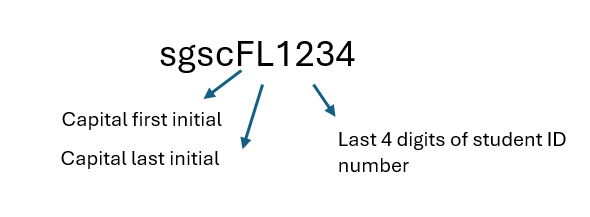
For example, let's say your name is James Wilkerson and your Student ID number is 987103149182
Your temporary password would be sgscJW9182
Sign into your SGSC account
Go to our website and go to the Student Gateway and click the Student Email tile, or you can click this link to go directly to the login page: https://mail.office365.com
- If you go to the Email login link and it takes you to a different email account (for example if it automatically signs you into VSU email or some other account, please open an Incognito window or InPrivate window in your web browser. You can do this by clicking the menu icon at the top right corner of your web browser and clicking the Incognito or Private Browsing window option. Depending on which browser, the wording may be different but it should be similar to "Incognito" or "Private". Now in the private window, go back to the SGSC website and go to the Email Login tile again.
Enter your full SGSC email address in the sign in box then click Next. If you do not know your student email address, click here and use the Student Information Lookup tool.
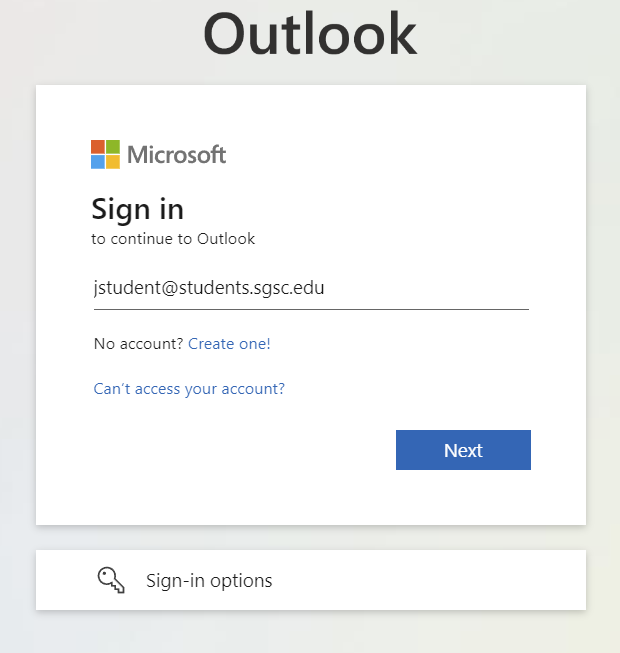
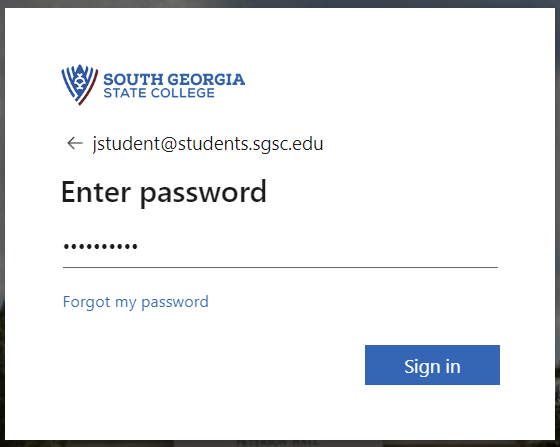
If you entered the correct email address it will take you to the password screen and show the South Georgia State College logo. If you do not see the SGSC logo, go back and make sure you entered the correct email address. In the password box, enter the temporary password as described in the first part of this page:
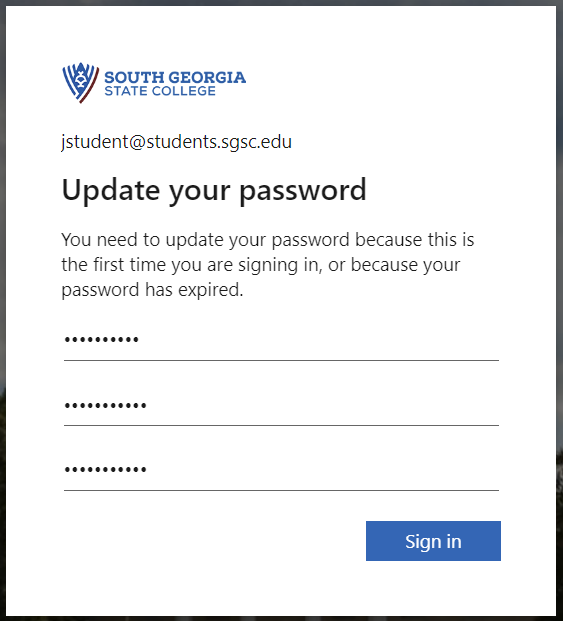
You will then be asked to update your password. For the "Current password", use the temporary password and then for the new password, please be sure to follow the requirements:
- Must be at least 10 characters long
- Must contain uppercase and lowercase letters
- Must contain at least one number or symbol
- Cannot contain any part of your first or last name
- Cannot contain repeating or sequential letters or numbers, such as 111, 123, zzz, abc
If you get an error that says "We've seen that password too many times", it means that your password does not meet the requirements or that it contains a commonly used word such as "password" or "Monday". Use something unique that is not easy to guess.
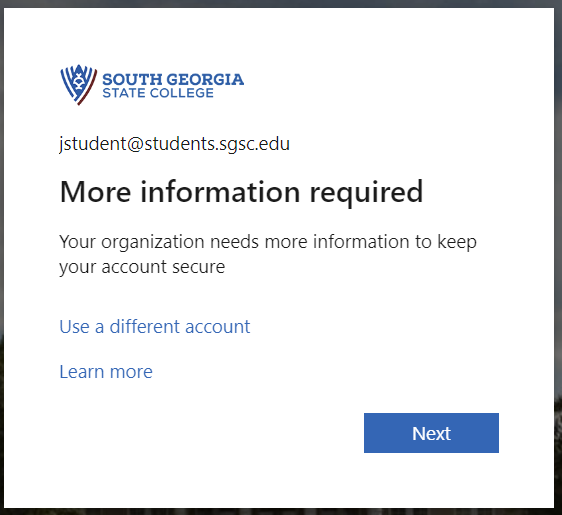
The next screen will say "More information required". This is to set up your password reset and your multifactor authentication. MFA (multi factor authentication) is required for all students and staff. You may use a cell phone to receive a call or text message, or the Microsoft Authenticator smartphone app. If you do not have a cell phone, please contact the IT department for assistance. There are other options available.
Set up Multifactor Authentication
If you have a cell phone, you can set up your account to use it to authenticate your logins. You can use either the Microsoft Authenticator app or you can choose to use the phone call/text message method.
Using the Microsoft Authenticator app
We recommend the Authenticator app since it offers options that work even if your phone does not have service.
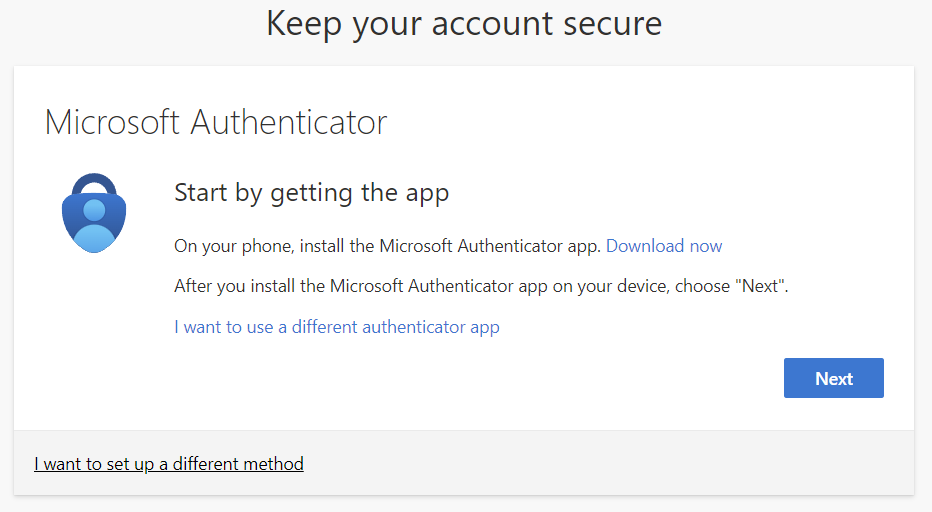
Once you have updated your password you should see the "Keep your account secure" screen.
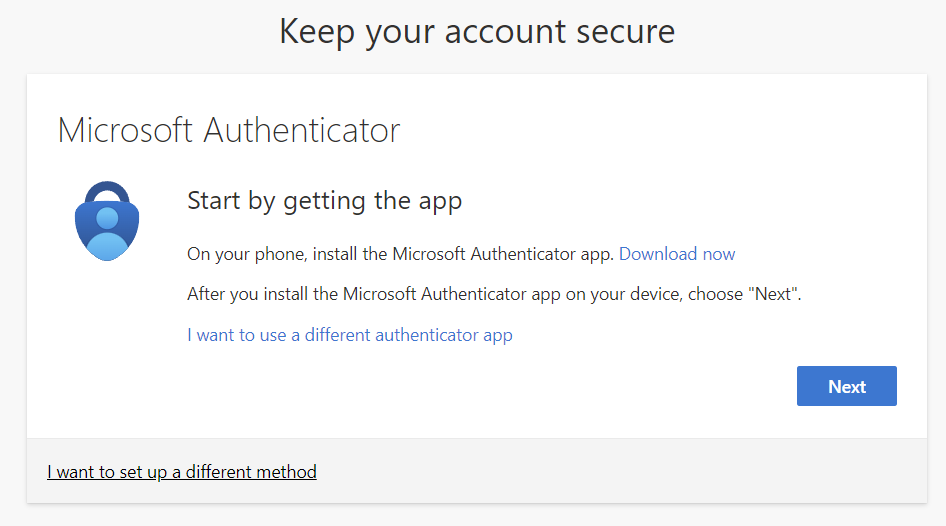
If you don't want to use the app, or prefer to receive a code via text message, see the instructions in the next section. Otherwise, open your phone and go to your app store and search for Microsoft Authenticator. Be careful, there are a few apps that look similar to this one, be sure to only download Microsoft Authenticator with the icon shown on your computer screen.
Once you get the app downloaded, click Next on your computer screen.
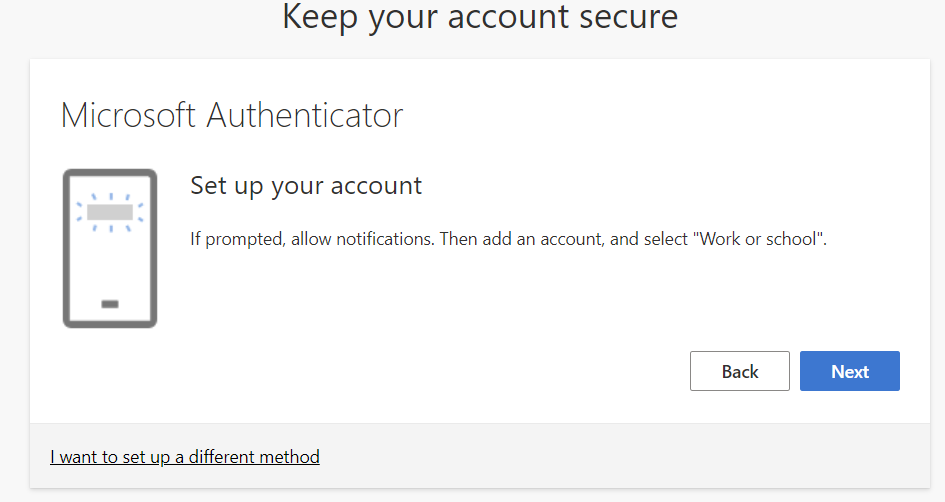
On your cell phone, in the Microsoft Authenticator app, choose the option to add a new Work or School account, and choose the option to scan a QR code.
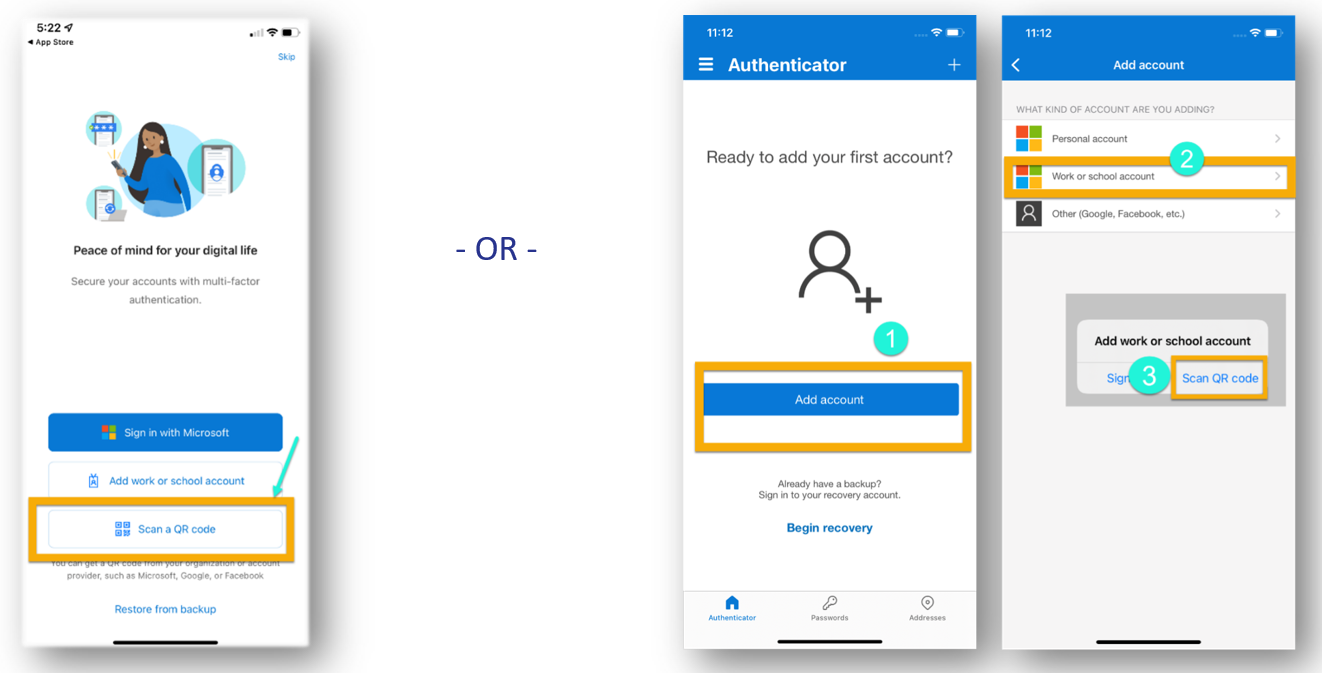
Accept any permissions that are required on your phone, such as notifications and camera access, and your camera should open. Click Next on the computer screen and you should be given a QR code to scan:
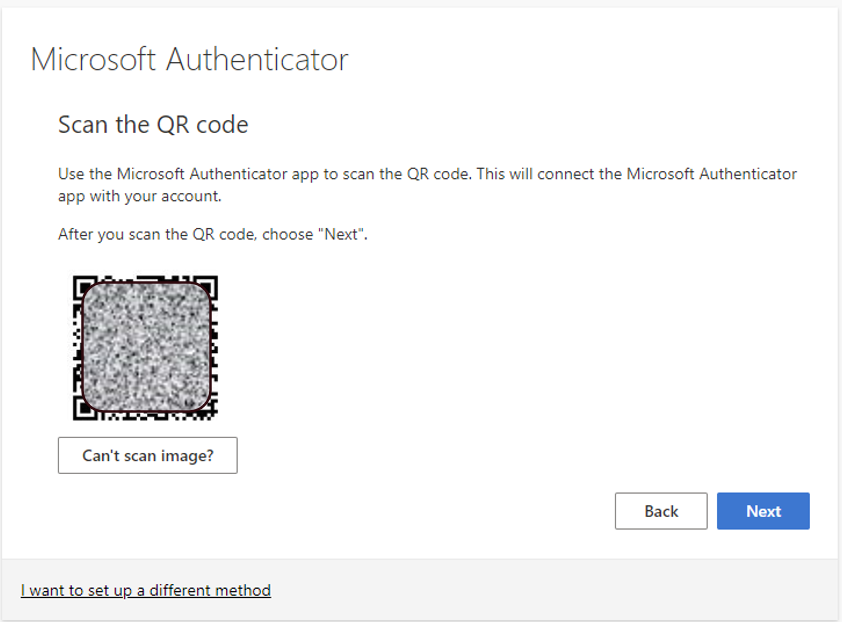
Scan the QR code with your phone and your SGSC account should be added in the app. Now click Next on the computer screen. It will send you a notification, enter the numbers on the screen into your app and tap "Yes".
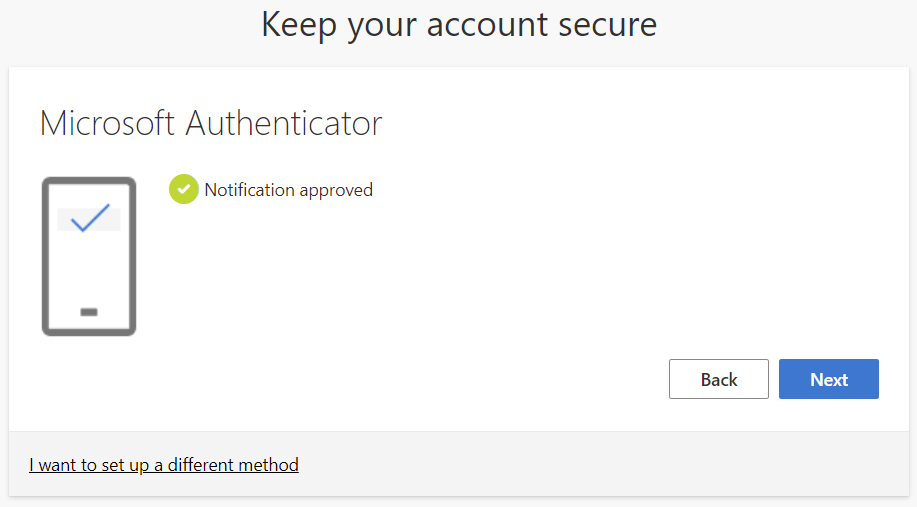
Once you have completed setup, it should take you into your SGSC student email.
Using the voice call/text message option
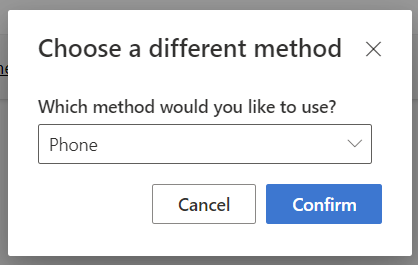
If you would rather receive a code via text or call, click "I want to set up a different method" on the screen
Now choose the Phone method and confirm
Enter your phone number and choose either the option to receive a text message or phone call
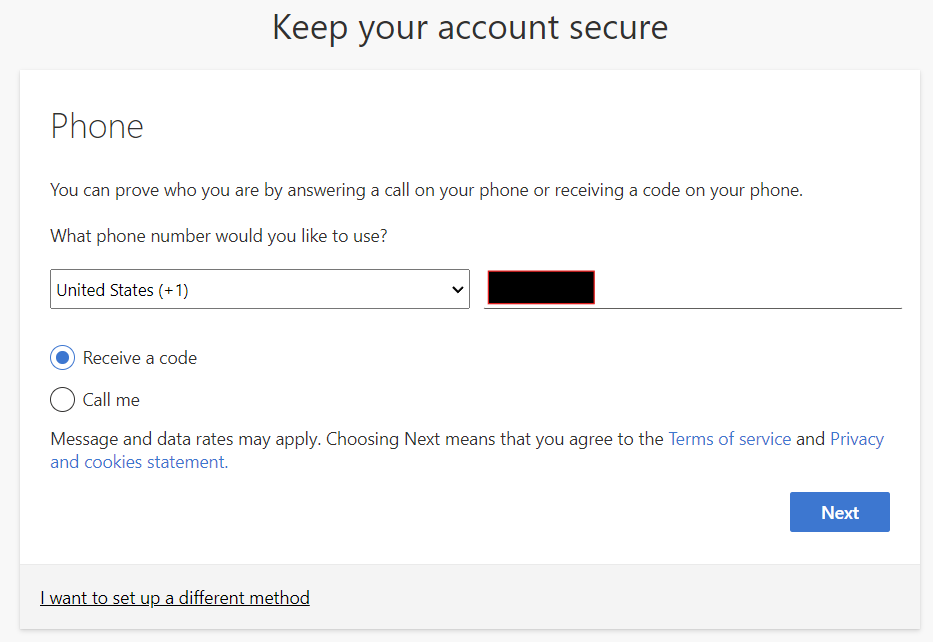
When you click Next it should send a text or call to your phone. Enter the code on the screen, or if you chose Call, press the key indicated in the message.
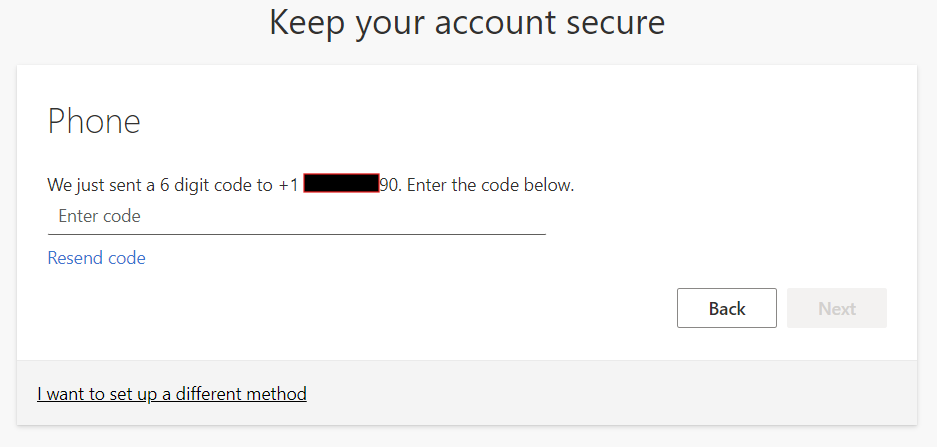
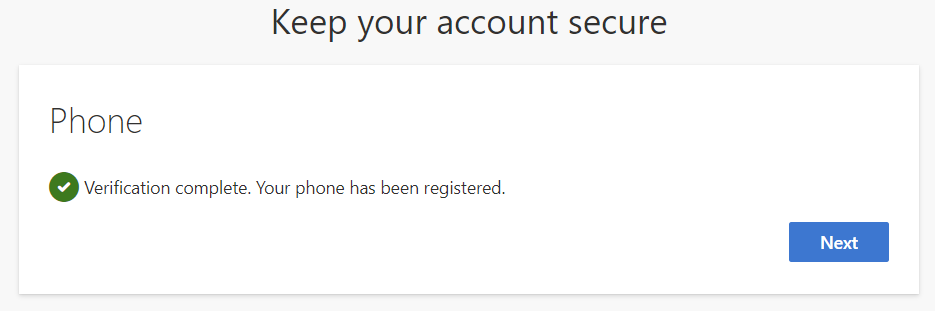 Once this is complete you will be directed to your SGSC email.
Adding or updating your authentication methods
If you would like to change your authentication method or add additional methods, please follow the instructions found in this document.
Adding or Updating Multifactor Authentication Methods
If you would like to set up additional authentication methods or change an existing method, follow these instructions.
- If you get a new phone or change your phone number and can no longer access your account, you will need to contact the IT department to have your MFA reset or number updated before you will be able to log in. If you know in advance that you will be getting a new phone, and if possible to do so, log in first and add an alternate MFA method so that you do not get locked out of your account.
Sign into the account portal
Open a web browser and sign into https://myaccount.microsoft.com
From here, go to the Security Info section
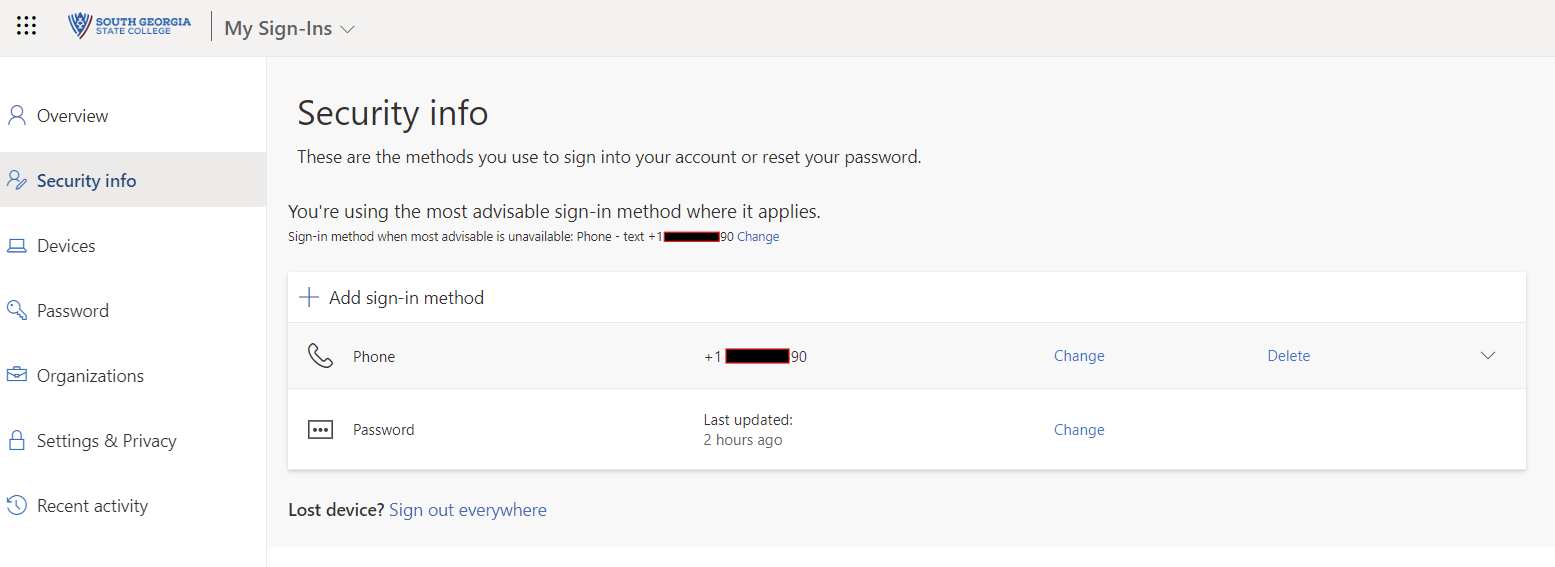
Click on Add sign-in method and choose the method you would like to add. You can have up to 3 phone numbers (only one phone can be used for SMS text), authenticator app, or a security key.
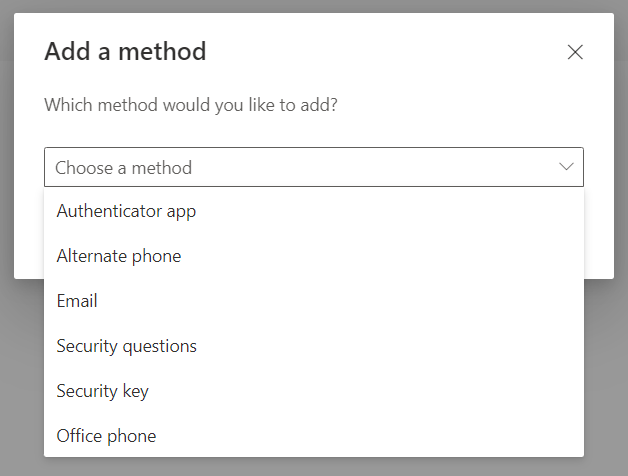
Follow the instructions on screen to add your new method.
Edit phone number
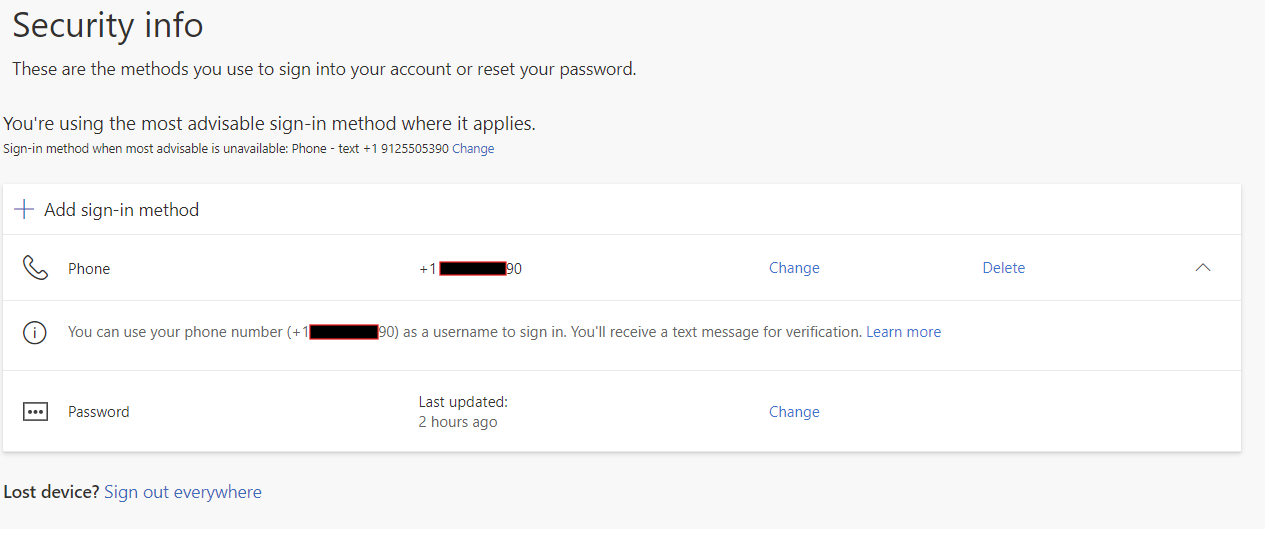
When you sign into the account portal and go to the Security Info section, you can edit the phone number on file, or you can delete any methods you no longer want to use by clicking the Change or Delete link next to that option.
Change your default MFA prompt
If you want to change the way you receive MFA prompts (for example, receive a text message instead of authenticator notification), follow the above steps to log into the account portal and go to Security Info. Next to the "Sign-in method when most advisable is unavailable:" click "Change", then select your desired method.
Unblock your account or change your password
If your account is blocked or if you'd like to change your password, you can easily do so.
Go to the account unlock page
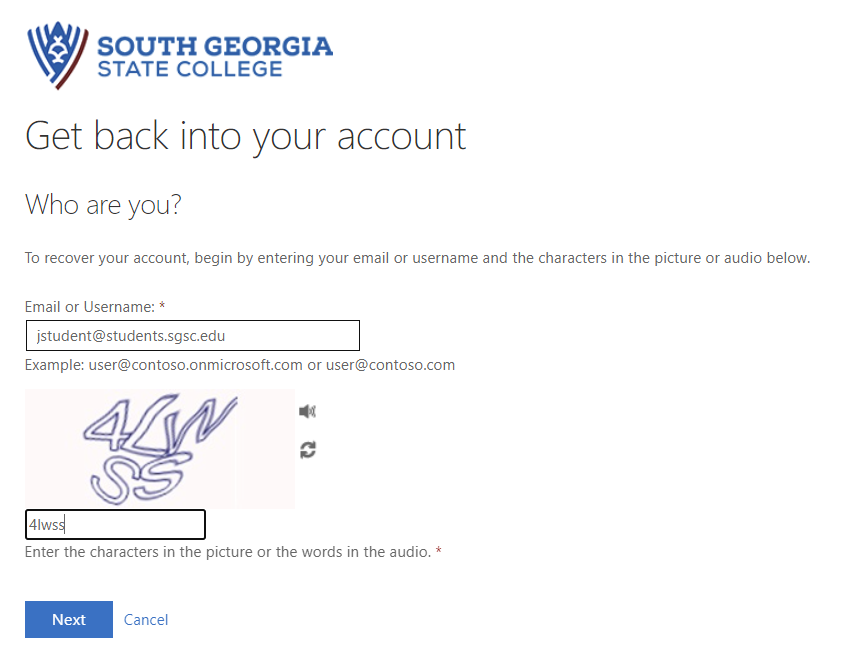
To unlock your account or reset your password, go to the account unlock page. You can either click the "I can't access my account" link on the login page (or the "Forgot my password" on the password page) or you can go directly to the site from this link.
Enter your SGSC email address and then enter the captcha letters on the screen:
If you forgot your password
If you forgot your password, select the first option and click Next:
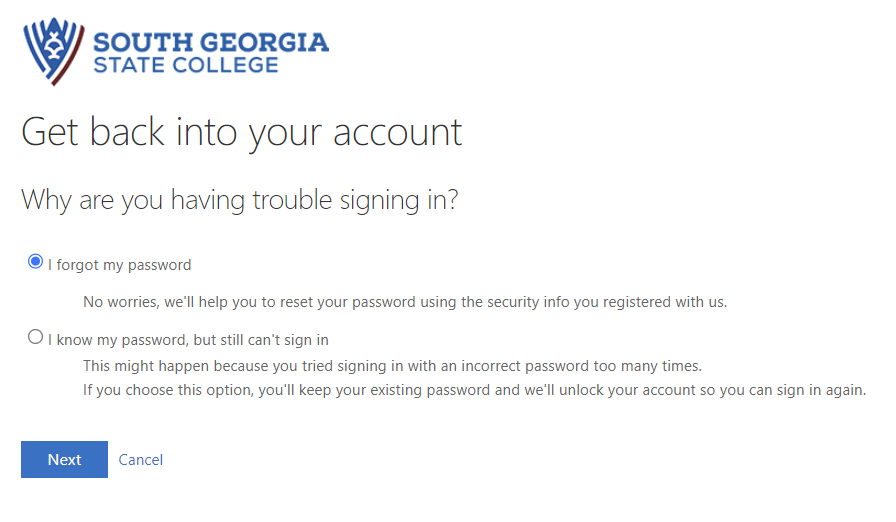
This option will send a multifactor authentication request
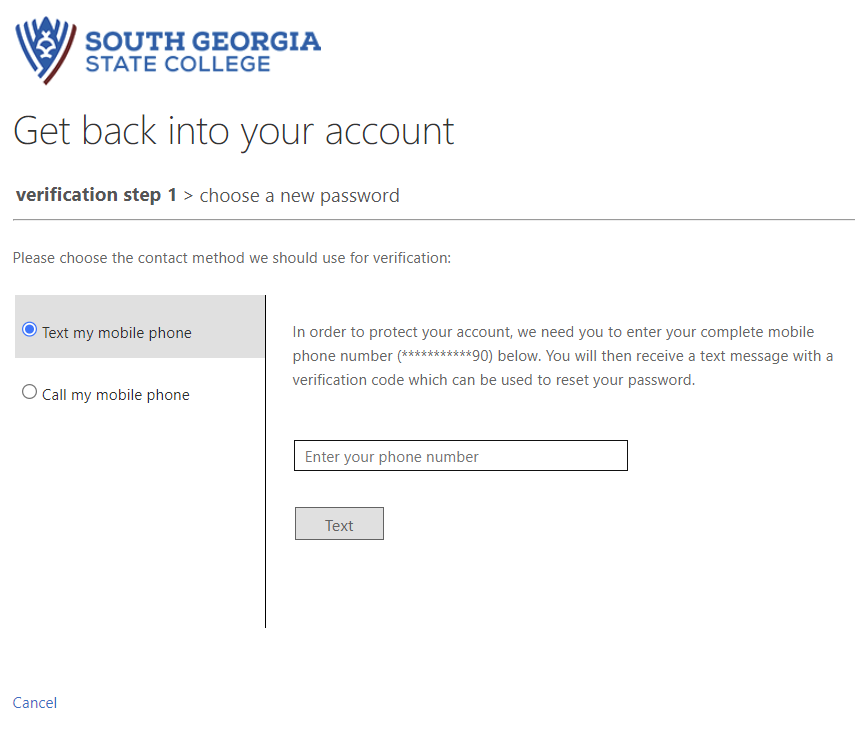
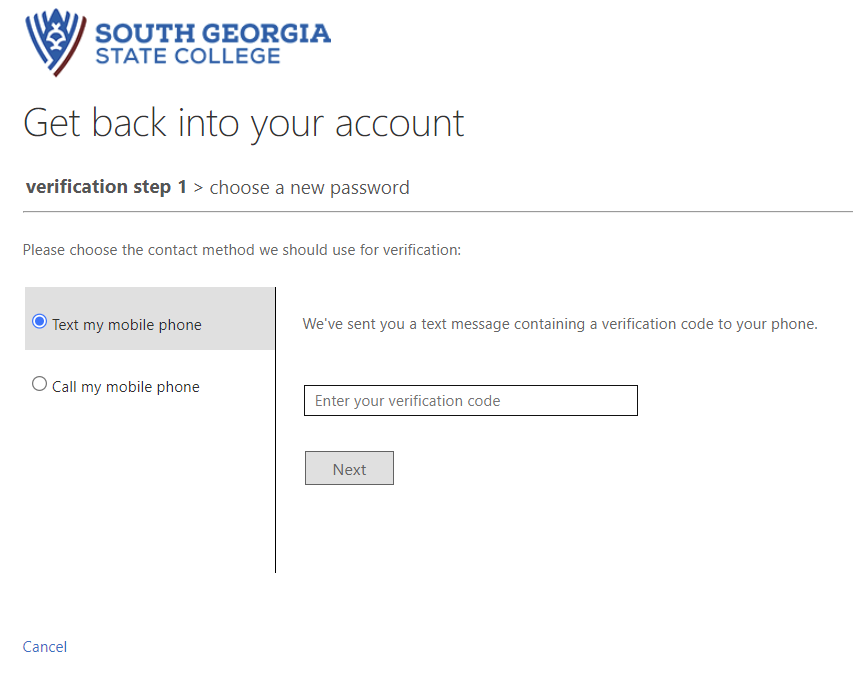
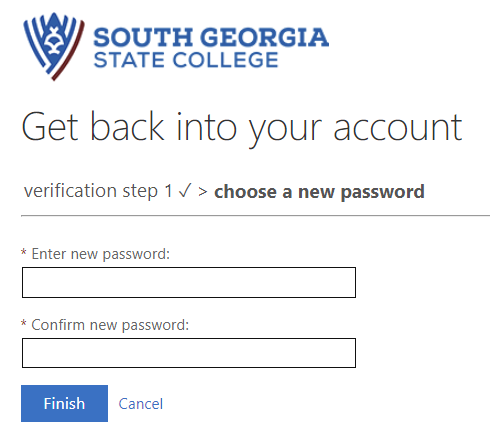
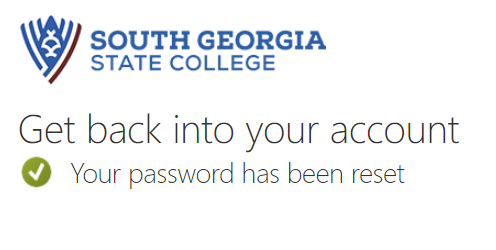
Once you verify your account it will prompt you to change your password.
If you know your password but your account is blocked
If you know your password but you get an error that your account has been blocked, choose the second option after signing into the account unlock page:
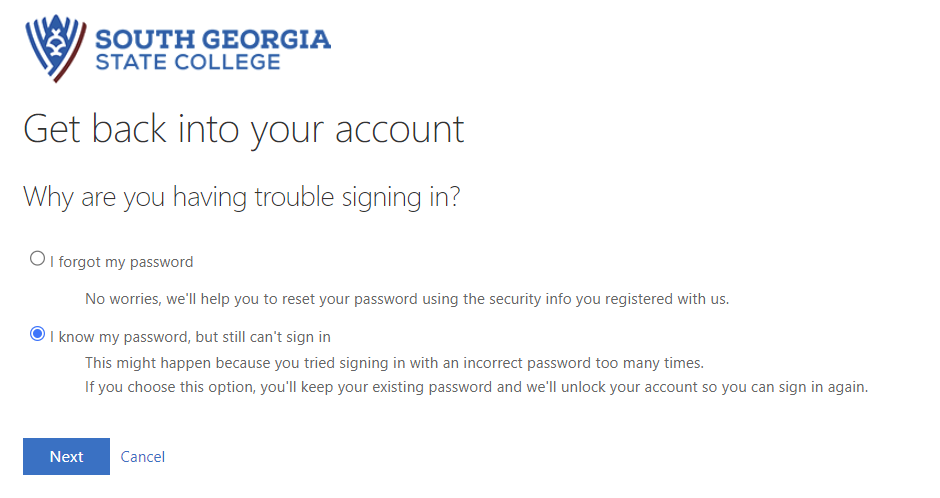
This option will send a multifactor authentication request
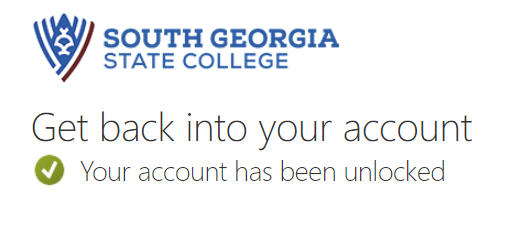
After you authenticate, your account will be unlocked
Still need help?
If neither of these solutions work for you, or if you have a new phone or your phone number has changed and you cannot authenticate to verify your account, contact the IT department for assistance.
How to Generate a Bypass Code in the Authenticator App
If you have the Microsoft Authenticator app installed and set up on your account, and you need to access your account but do not have phone service or wifi, the authenticator app can generate a one-time use code that will allow you to authenticate. This is useful if you are in an area with no phone service or wifi, or traveling overseas with no service, or if your phone service has been disconnected but you still have the phone in your possession.
Sign into your SGSC account and get to the MFA screen
Sign into your SGSC email, Banner, or GA View account using your SGSC email address and password as you normally would.
When you get to the authentication screen, choose "I can't use my Microsoft Authenticator app right now" (or "Choose another method" if your default method is phone/text).

On the next screen you will be presented with more options

Choose "Use a verification code"

Open your Authenticator app on your cell phone
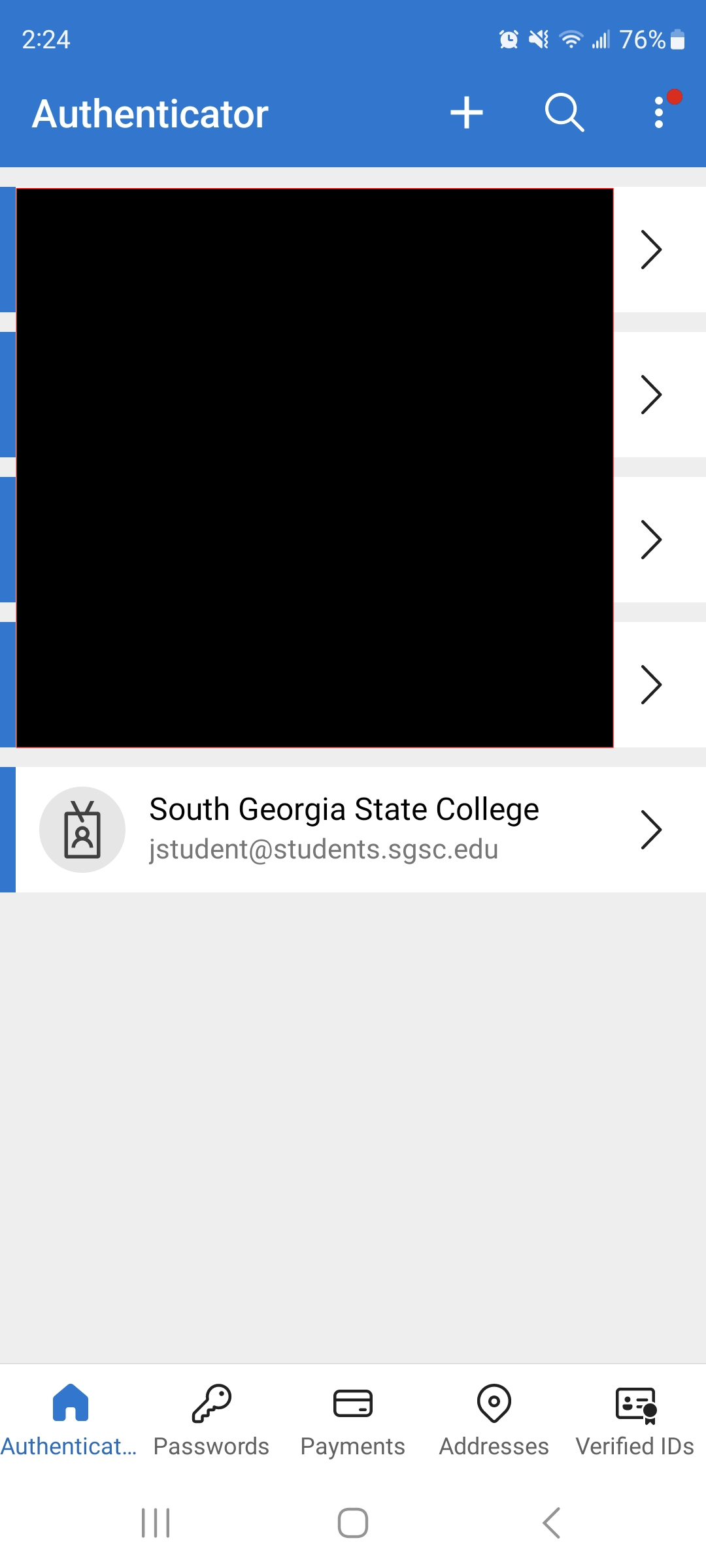
Tap on your SGSC email account

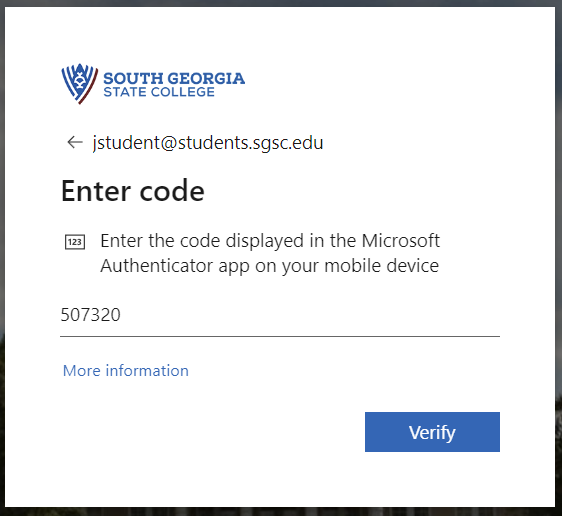
Take note of the "One-time password code". This 6 digit number will change every 30 seconds. Enter this code on your screen to authenticate
What if the code doesn't work?
Make sure the code hasn't expired. If you enter the code but there are only 1 or 2 seconds left before it refreshes, it may not work. In this case it is better to wait a few seconds for the code to refresh before entering it on the webpage.
If you have multiple SGSC accounts listed in your authenticator app, you may need to try each of them to find the one that works. This usually happens if you get a new phone and the old account gets carried over from the old phone but the MFA has been reset and re-added.
If it is still not working, your MFA may need to be reset. In this case, you'll have to contact the IT department to have it reset. If this is the case, you will need to have phone service or wifi to set the authenticator back up on your account, or you'll need to have a phone number available to authenticate with.